
Odoo POS Cashback
The Guper POS Cashback module (guper_pos_cashback) brings Guper cashback earning and redemption into the Odoo 19 Enterprise Point of Sale (POS), with customer validation via a WhatsApp PIN. Redemption is represented for tax purposes as a per-line discount (CFDI concept discount).
This guide walks you through installing and configuring it on an Odoo.sh project, step by step.
Prerequisites
- An Odoo.sh project already created on Odoo 19 Enterprise.
- Access to the project's GitHub repository (the one Odoo.sh builds).
- The customer organization's Guper credentials: API Key, API Secret and base URL (
https://{org}.myguper.com). See Authentication if you need to obtain them.
Part A. Installing the module
The module is distributed as a git submodule pointing at the MyGuper/guper-odoo repository. This way every customer reuses the same code and gets updates without copying files.
Step 1. Open the project in Odoo.sh and add the submodule
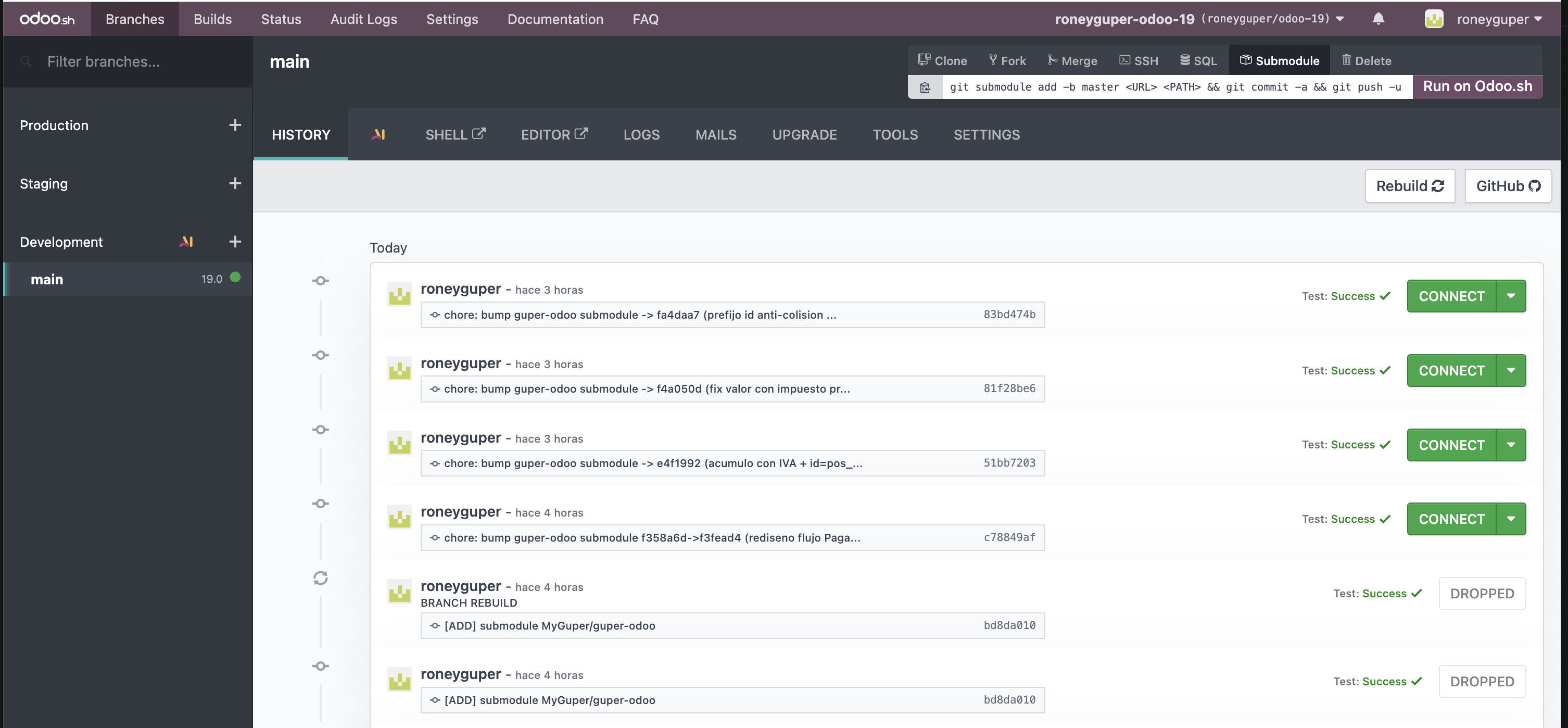
In the Odoo.sh panel, go to the Branches tab and select your branch (e.g. main). At the top right, click the Submodule button.
Step 2. Fill in the submodule details
In the Add a submodule dialog, enter exactly these values and click Add a submodule:
| Field | Value |
|---|---|
| Repository URL | git@github.com:MyGuper/guper-odoo.git |
| Branch | 19.0 |
| Path | MyGuper/guper-odoo |
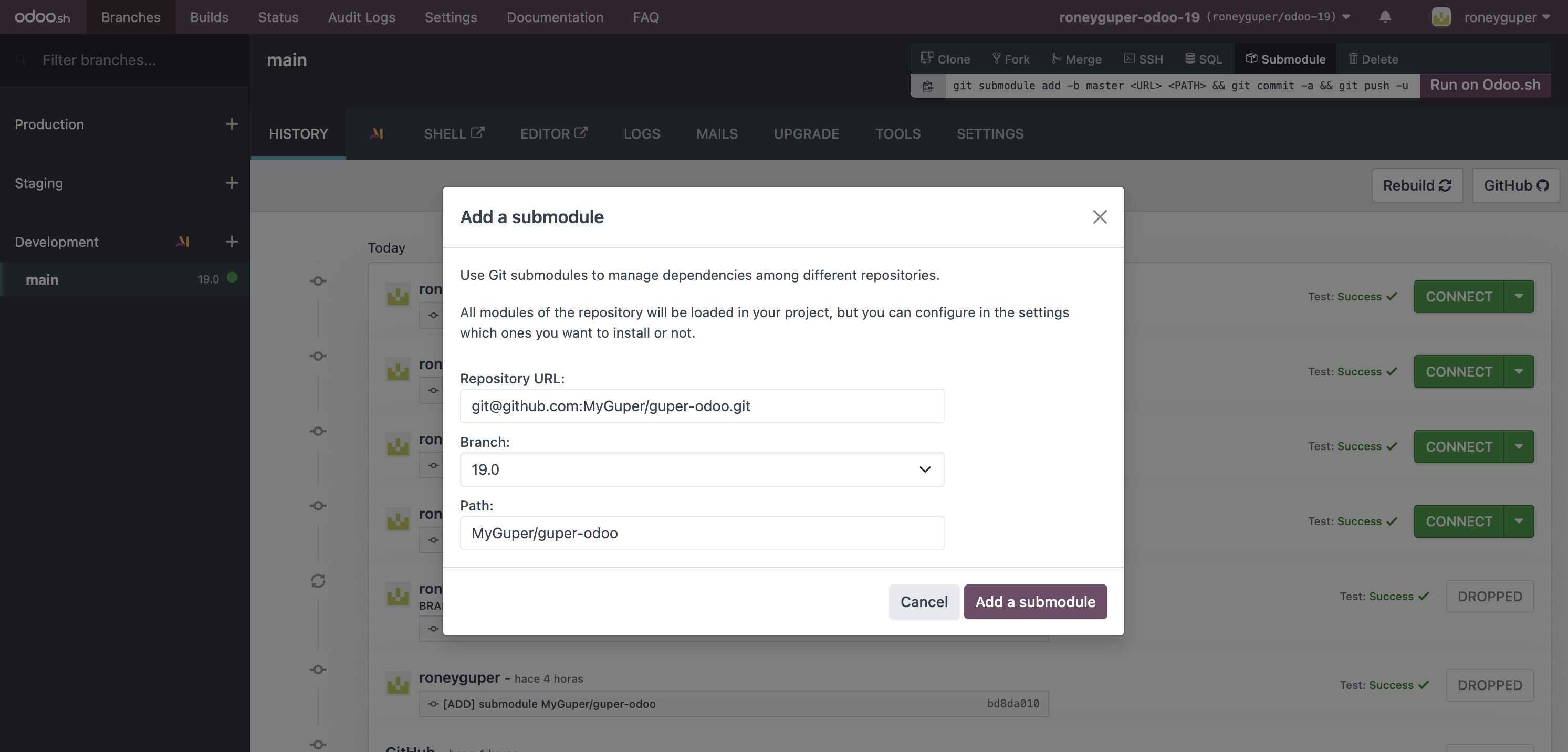
On confirmation, Odoo.sh triggers a new build of the branch. Wait until the build turns Success (green).
Step 3. Connect to the Odoo environment
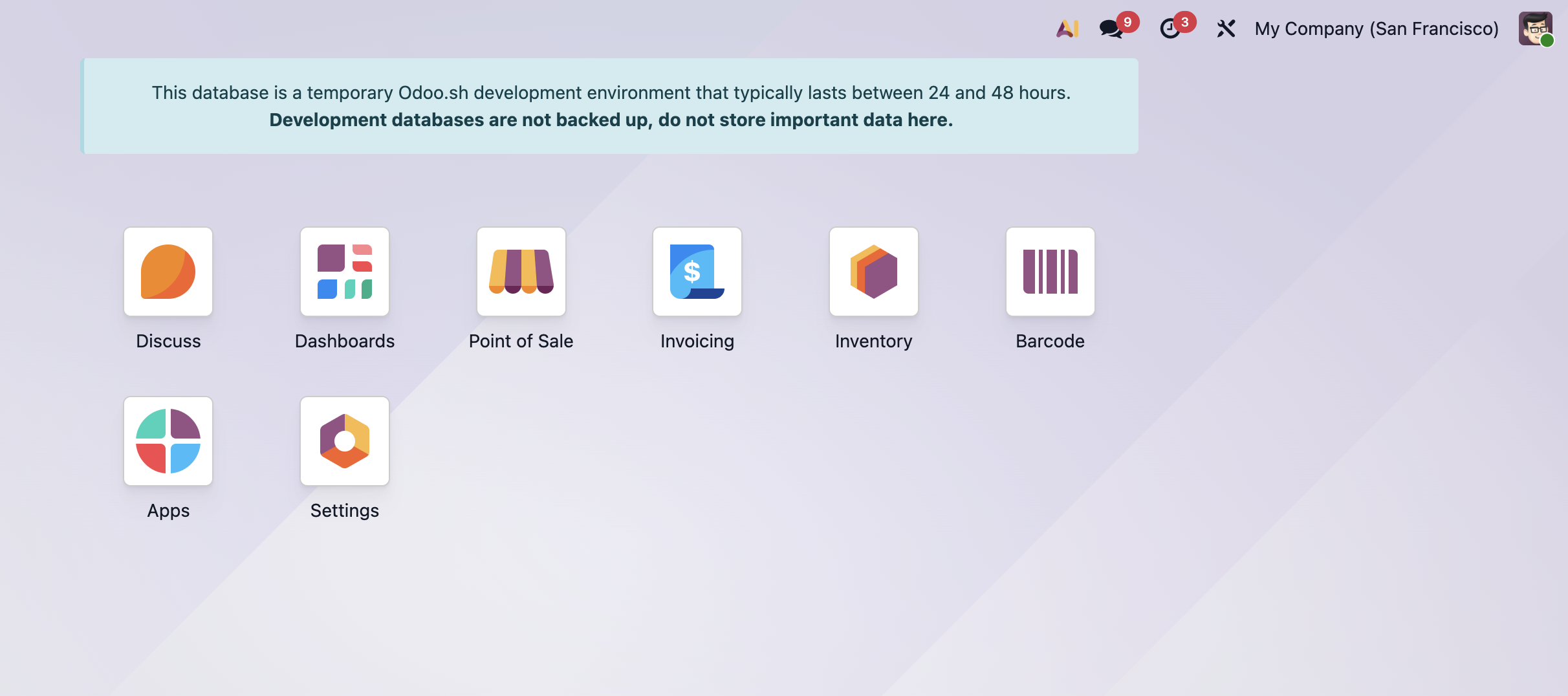
When the build is ready, click CONNECT to open the database. You'll see the Odoo apps menu.
Note: on development/staging branches, Odoo shows a notice that the database is temporary. Use those only for testing.
Step 4. Install the module from Apps
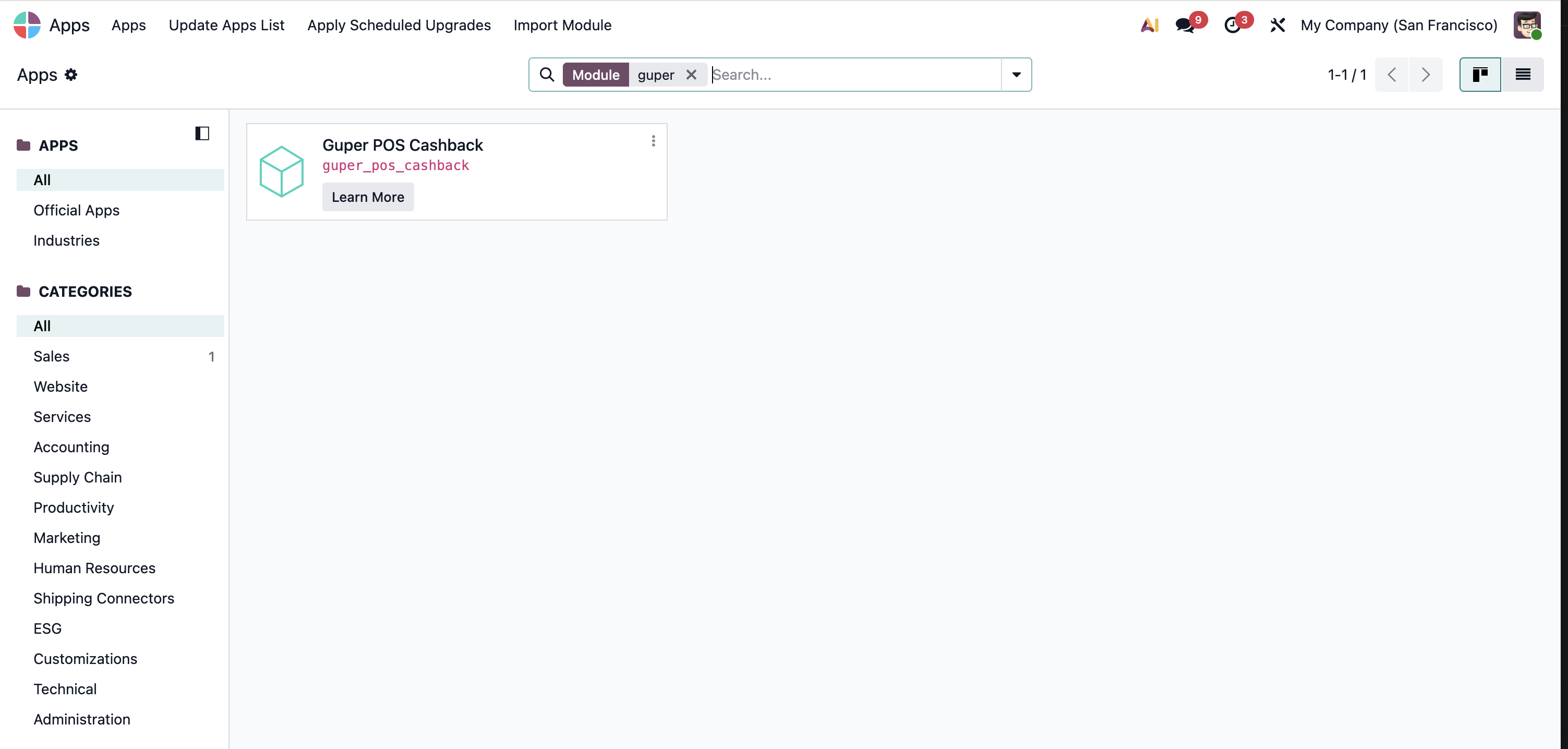
Go to Apps, type guper in the search box and find Guper POS Cashback (guper_pos_cashback). Click Activate / Install.
If the module doesn't show up, use Update Apps List (top menu) and search again.
Part B. Configuration
The integration is configured through System Parameters. To reach them you need to enable developer mode.
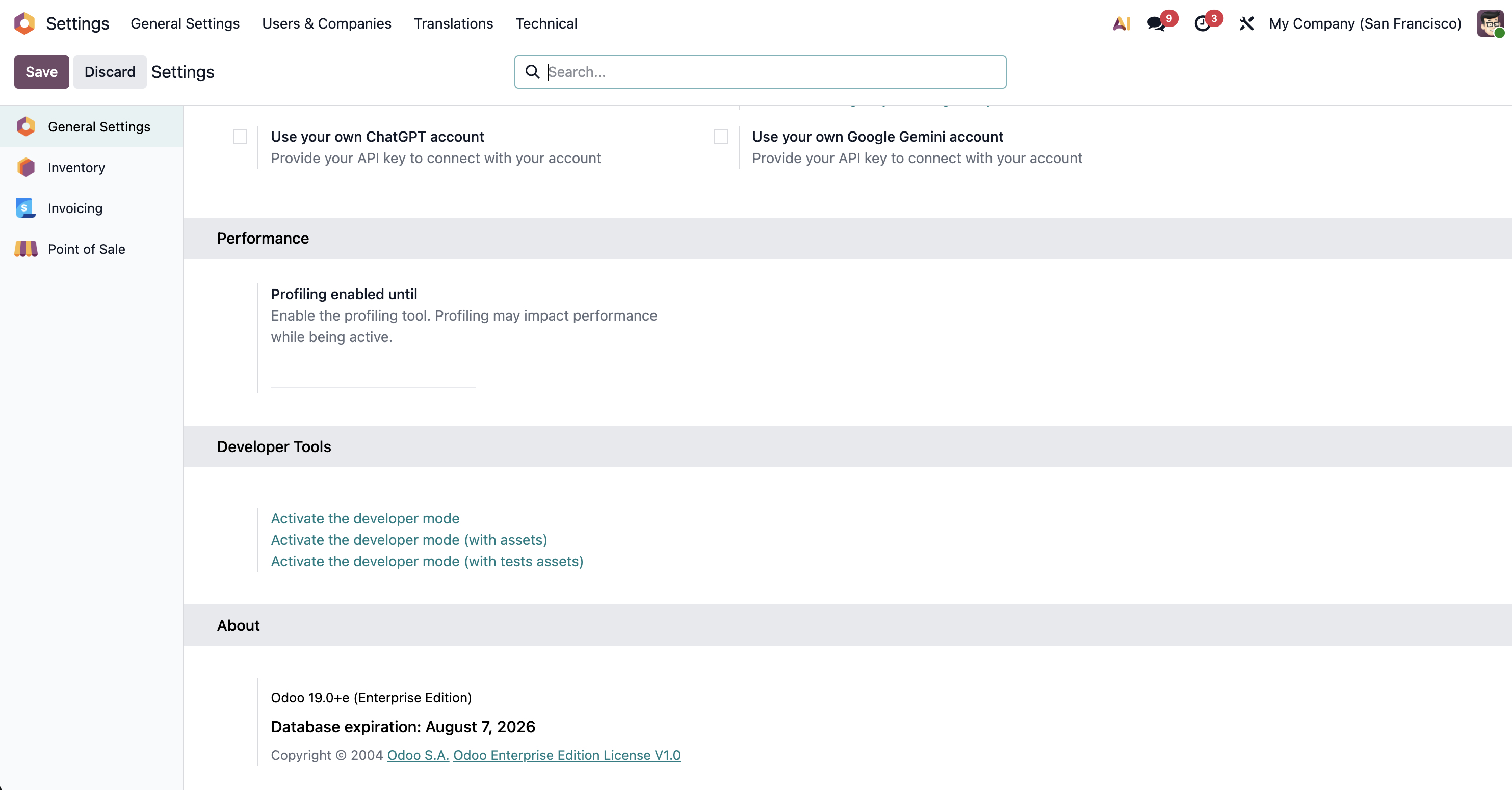
Step 5. Enable developer mode
Go to Settings, scroll to the Developer Tools section and click Activate the developer mode.
Step 6. Open System Parameters
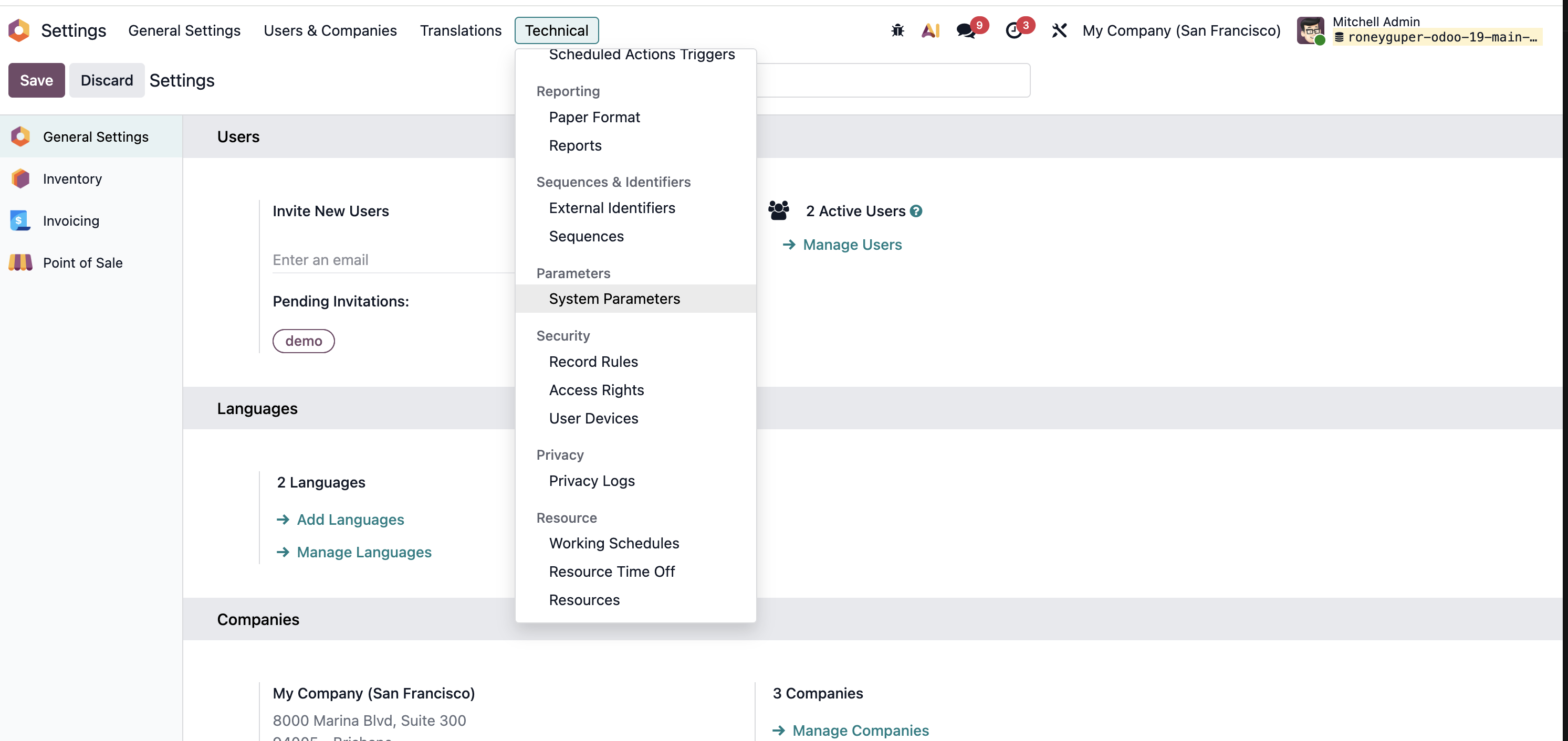
With developer mode active, a Technical menu appears in Settings. Open it and, under Parameters, go to System Parameters.
Step 7. Configure the Guper parameters
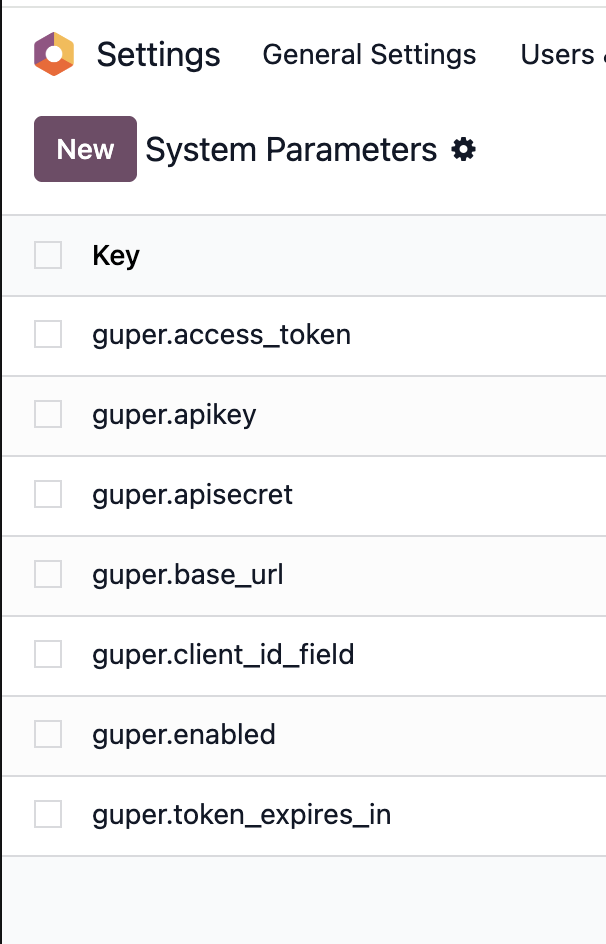
The module automatically creates the guper.* keys. Adjust the values for the customer:
| Parameter | Value | Description |
|---|---|---|
guper.base_url |
https://{org}.myguper.com |
Base URL of the customer's Guper organization. |
guper.apikey |
(provided by Guper) | Organization API Key. |
guper.apisecret |
(provided by Guper) | Organization API Secret. |
guper.client_id_field |
phone |
Field that identifies the customer. Possible values: phone, email, document. |
guper.enabled |
True |
Enables communication with Guper. See the security note below. |
guper.access_token |
(automatic) | Session token. Managed by the module, do not edit. |
guper.token_expires_in |
(automatic) | Token expiry. Managed by the module, do not edit. |
To edit a value, click the parameter's row and change the Value field.
Security note: guper.enabled
guper.enabled ships as False by default, on purpose.
On Odoo.sh, staging databases are a copy of production, including the Guper credentials. If a staging copy were left enabled, it could talk to the production Guper organization and send real PINs over WhatsApp.
So:
- Keep
guper.enabled = Falseon staging and development. - Set
guper.enabled = Trueonly in production.
Updating the module to a new version
Because the module was installed as a submodule, a push to the guper-odoo repository does not automatically update the projects that already have it: a submodule points at a fixed commit. To pull the latest version, run this in the Odoo.sh project repository:
git submodule update --remote MyGuper/guper-odoo
git add MyGuper/guper-odoo
git commit -m "update: Guper POS Cashback to the latest version"
git push
--remote grabs the latest commit of the 19.0 branch (defined in .gitmodules). On push, Odoo.sh rebuilds the build with the new version.
Quick verification
- Open the Point of Sale and create an order with a customer that has the identifier field (phone by default) registered.
- On Pay, the Guper flow quotes the order: if there's balance, it offers redemption (with PIN); if not, it reports how much will be earned.
- Confirm in Guper that the order is recorded with the POS ticket number and the tax-inclusive amount.
The POS experience
This video shows what the cashback flow looks like at the Point of Sale once configured:
Support
The integration team is on WhatsApp 24/7 — +52 55 2328 5981.